Step 1: Build the Goof container image
Now that you’ve cloned the repo to your working environment, we’ll build a few container images that run our application examples in Amazon Elastic Kubernetes Service (EKS) but before we can do anything, we need to create some ECR repositories to house the build images so EKS has somewhere to pull them from.
Create the ECR repositories
The following commands will create 3 repositories for the images we will be building:
aws ecr create-repository --repository-name thumbnailer && \
aws ecr create-repository --repository-name todolist && \
aws ecr create-repository --repository-name log4shell-server
After each finishes you should get a JSON reponse similar to the following:
{
    "repository": {
        "repositoryArn": "arn:aws:ecr:us-east-2:012345678901:repository/thumbnailer",
        "registryId": "012345678901",
        "repositoryName": "thumbnailer",
        "repositoryUri": "012345678901.dkr.ecr.us-east-2.amazonaws.com/thumbnailer",
        "createdAt": "2023-06-05T16:02:53+00:00",
        "imageTagMutability": "MUTABLE",
        "imageScanningConfiguration": {
            "scanOnPush": false
        },
        "encryptionConfiguration": {
            "encryptionType": "AES256"
        }
    }
}
Tip
Press q to exit the details of each created repository. If you need to retrieve your repository information in the future, you can run the command aws ecr describe-repositories to get a list of all your repositories.
In the response we want to copy the hostname part of the repositoryUri (not including the ‘/’ and anything after it) and paste it into command below which will store it in an environment variable for future use. Fortunately, those values are available in environment variables so this command collect them and store them in a REPO variable for our use in later steps:
export REPO=$AWS_ACCOUNTID.dkr.ecr.$AWS_REGION.amazonaws.com
echo $REPO
The output should look something like the following:
012345678901.dkr.ecr.us-east-2.amazonaws.comLog into your repositories
Next, we log into our repositories (one command logs you into any of your repositories)
aws ecr get-login-password | docker login --username AWS --password-stdin $REPOThis should return a Login Succeeded repsonse.
Build container images
Now we will build the images. Be sure you are cd’ed into the cloned goof repo directory. (if you just completed the prerequisite sections, you might still be in the cloud9-setup sub-directory so run cd .. if needed.)
cd /Workshop/goofOnce you are in the right directory, run the following commands to build the container images.
docker build -t $REPO/thumbnailer:latest thumbnailer

docker build -t $REPO/todolist:latest todolist

docker build -t $REPO/log4shell-server:latest todolist/exploits/log4shell-server
When all of the build processes are complete, if you run docker images you should see three rows like this:
docker imagesREPOSITORY TAG IMAGE ID CREATED SIZE
012345678901.dkr.ecr.us-east-2.amazonaws.com/log4shell-server latest a42b0d443129 10 minutes ago 535MB
012345678901.dkr.ecr.us-east-2.amazonaws.com/todolist latest 57ad8c044dbd 15 minutes ago 612MB
012345678901.dkr.ecr.us-east-2.amazonaws.com/thumbnailer latest 3406c6d949b4 20 minutes ago 941MBPush container images to ECR
Next, we want to push the images to ECR but before we can push them we need to create their respective repositories.
docker push $REPO/thumbnailer:latest
docker push $REPO/todolist:latest
docker push $REPO/log4shell-server:latest
Once the pushes complete, log in to your ECR repositories to see your new image repositories.
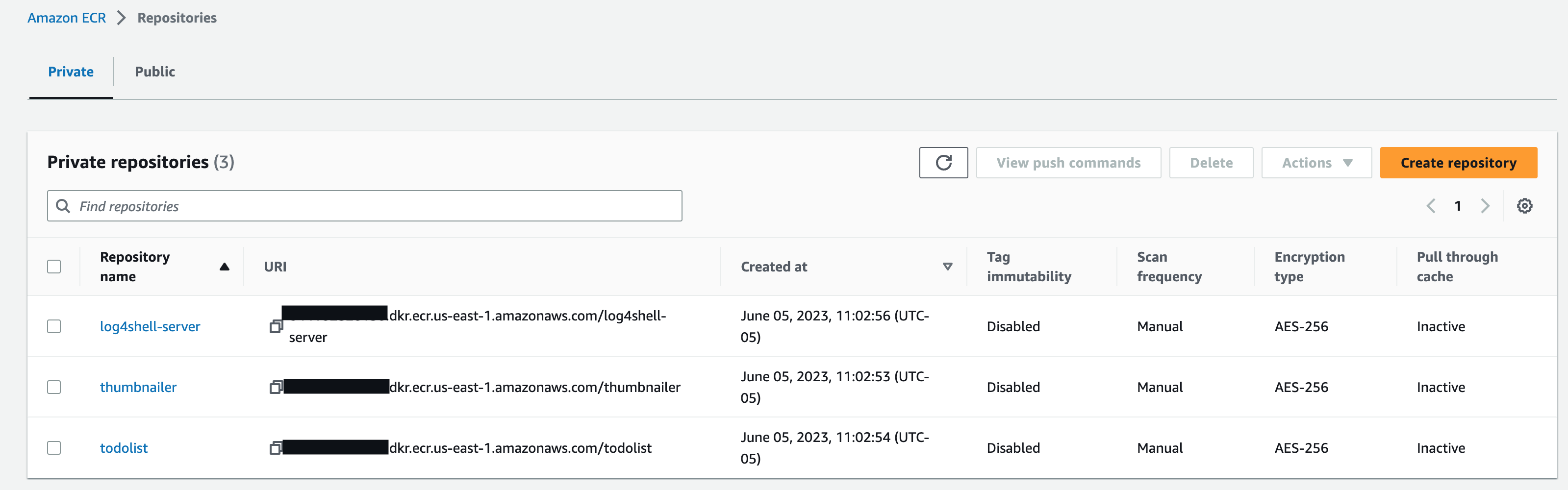
Tip
If your ECR Repositories list is empty, ensure you are looking at the correct region. This workshop defaults to us-west-2 (Oregon).